
Managing reviewers and review groups now happens in one place. This article introduces the updated Reviews page and points you to the detailed how-to articles for each task.
What's New
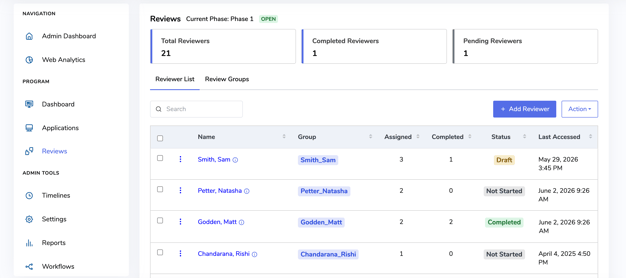
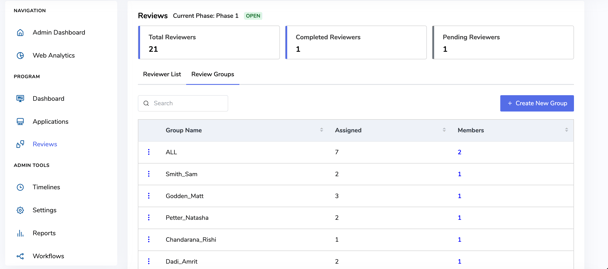
The Assign Reviewers page and the Reviews page have been combined into one page. Instead of switching between two separate screens, you'll now find everything under one page with two tabs:
Reviewers: assign and manage individual reviewers for the program
Review Groups: create and manage the groups reviewers are assigned to
A few other changes came with this update:
- Delete Scores: Clear a reviewer's scores directly from their row, without deleting the reviewer.
- History: View a reviewer's activity in a modal instead of a separate page.
- Already-scored warnings: If you assign, reassign, or remove a reviewer who has already submitted scores, you'll see a warning before the change goes through.
- Faster loading: Reviewer and group lists now load progressively, so large programs open faster.
Where to find it
- Go to your program dashboard.
- Click Reviews.
You'll land on the Reviewers tab by default. Click Review Groups to switch tabs.
Note: The separate Assign Reviewers and Reviews menu items have been removed — everything now lives under this one page!
Reviewers Tab
Use this tab to manage who's reviewing on the program.
From here you can:
- Search reviewers by name, email, or group
- See each reviewer's group, status, and how many submissions they've completed
- Assign a reviewer to the program
- Unassign a reviewer from the program
- Assign a reviewer to a review group
- View a reviewer's history
- Delete a reviewer's scores
- Remove a reviewer from the program
The table gives you an at-a-glance view of reviewer progress, no need to open each reviewer individually to see how many submissions they've scored.
Note: If a reviewer has already scored submissions, you'll see a warning before you unassign them or remove them from the program.
For the full walkthrough, see Managing Reviewers on a Program.
Review Groups Tab
Use this tab to manage how reviewers are organized into groups. From here you can:
- Search groups by name or reviewer
- Create a new group (manually, by auto-creating groups, or by assigning all reviewers to one group)
- Edit a group's members
- Rename a group
- Delete a group (only available once it has no members)
Note: If you add a reviewer to a group who has already scored submissions in that group, you'll see a notification before the update completes.
For the full walkthrough, see Creating & Managing Review Groups.