
The Rollback feature allows administrators to restore a previously published version of a submission form or review form.
Rollback provides a safety net when changes have been published in error, unexpected issues are discovered, or you need to return to a previously working version.
What is a Rollback?
A rollback restores a previously published version and makes it the active version in Production.
Instead of manually recreating questions, sections, criteria, or settings, administrators can quickly return to an earlier version with just a few clicks.
Common reasons to perform a rollback include:
- A form was published with incorrect questions
- Conditional logic is not working as expected
- A review form was published with incorrect criteria or scoring
- Questions or sections were accidentally removed
- Users report issues after a recent publish
- You need to restore a previously approved version
Understanding Version History
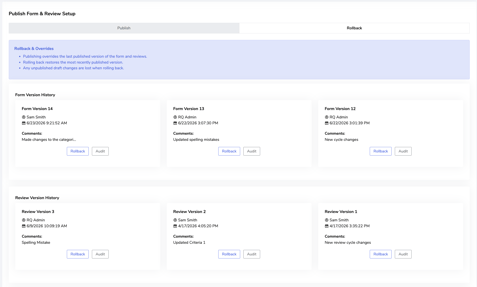
The rollback page contains two separate version histories:
Form Version History
Displays all previously published versions of the submission form.
For each version, you can view:
- Version Number
- Published By
- Publish Date & Time
- Publish Comments
- Audit History
Review Version History
Displays all previously published versions of the review form.
Each version includes the same details as the Form Version History.
Before You Roll Back
Before restoring a version, we recommend:
- Reviewing the version number carefully
- Reading any available comments
- Using the Audit feature to understand what changed
- Confirming the version contains the configuration you want to restore
Important: Rolling back restores the entire form or review version. Individual questions, sections, or criteria cannot be restored separately.
Rolling Back a Submission Form
Step 1: Navigate to Publish
From the advanced settings, select Publish
Step 2: Select the Rollback Tab
At the top of the page, click Rollback.
Step 3: Locate the Version to Restore
Under Form Version History, locate the version you want to restore.
Review:
-
Version Number
-
Published By
-
Date Published
-
Comments
Step 4: Review the Audit History (Recommended)
Click Audit to review the changes contained within that version.
This helps confirm that you are restoring the correct version before proceeding.
Step 5: Click Rollback
Click Rollback on the desired version.
A confirmation window will appear asking you to confirm the rollback action.
Step 6: Confirm the Rollback
Once confirmed, the selected version will become the active version in Production.
The restored version will immediately be available to submitters.
Rolling Back a Review Criteria
Step 1: Navigate to Publish
From the advanced settings, select Publish
Step 2: Select the Rollback Tab
Click Rollback at the top of the page.
Step 3: Locate the Version to Restore
Under Review Version History, locate the review version you want to restore.
Review the version details before proceeding.
Step 4: Review the Audit History (Recommended)
Click Audit to review the version before restoring it.
Step 5: Click Rollback
Click Rollback beside the version you want to restore.
Step 6: Confirm the Rollback
Once confirmed, the selected version will become the active review form in Production.
The restored review configuration will immediately be available to reviewers.
What Happens After a Rollback?
When a rollback is completed:
- The selected version becomes the active Production version
- Changes take effect immediately
- Users will see the restored version going forward
- The version history remains available for future rollbacks
What Does Not Change?
Rolling back a form or review does not modify:
- Existing submissions
- Existing reviews
- Historical scores
- User records
- Program data
Rollback only affects the form or review configuration moving forward.
Best Practices
- Always review the Audit history before rolling back
- Use comments to identify the correct version
- Confirm the publish date before restoring
- Test significant changes in Staging before republishing
- Communicate major rollbacks with your team
FAQ's
Can I rollback only one question or criterion?
No. Rollback restores an entire form or review version.
Does rollback affect existing submissions or reviews?
No. Existing data remains unchanged.
What is the difference between Audit and Rollback?
Audit allows you to review a version.
Rollback restores that version as the active Production version.
Can I rollback to any version shown in Version History?
Yes. Any version displayed in Version History can be restored.
How quickly does a rollback take effect?
Changes are applied immediately after the rollback is confirmed.